

WhatSie: Feature-rich WhatsApp Web client based on Qt WebEngine for Linux and Windows Desktop
WhatSie: A Feature-Rich WhatsApp Web Client Based on Qt WebEngine for Linux and Windows Desktop
Introduction
WhatSie is a polished, feature-packed WhatsApp web client built on Qt WebEngine designed to run on Linux and Windows desktops. It reimagines WhatsApp Web by bringing desktop-grade controls, open configuration, and system integrations that you would expect from a native application. From visual themes that adapt to day and night, to comprehensive privacy and permission management, WhatSie puts you in control of how you interact with WhatsApp on your computer. This blog post explores WhatSie’s design philosophy, key features, practical usage, and how to get it running on your favorite Linux or Windows setup.
Key Features at a Glance
WhatSie is designed to be more than just a wrapped WhatsApp Web experience. It emphasizes customization, accessibility, and precise control over how the app behaves in your desktop environment. Here are the standout areas:
Theming and UI Customization
- Light and dark themes with automatic switching
- Full view mode that expands the main view to the full width of the window
- Widget styling and configurable auto theme switching based on day/night time
- Configurable close button action and global app shortcuts for quick adjustments
- Configurable page zoom factor, with responsiveness to window state (maximized vs. normal)
Notifications and Audio Control
- Customized notifications and native notifications for a native feel
- Ability to switch between native and custom notification styles
- Configurable notification popup timeout
- Mute audio and disable notifications when desired
- Do not disturb mode to silence all activity during focus periods
System Integration and Accessibility
- Hardware access permission manager to control camera, mic, and other hardware-level permissions
- App lock feature for secure access to the application
- App lock password management to maintain secure access
- Application storage management to clean residual cache and persistent data
Productivity and Workflow
- Keyboard shortcuts for rapid navigation and actions
- Built-in download manager to handle media and file downloads
- Do not disturb, full view, and other modes designed to fit your workflow
- Minimize to tray on application start and a toggle to enable single-click hide to the system tray
- Switching download location to fit your storage strategy
- Auto-locking after a configurable interval for enhanced security
- Global app shortcuts for quick actions across the desktop environment
Privacy, Security, and Permissions
- Permission manager to toggle camera, microphone, and other hardware permissions
- App lock mechanisms with password management to prevent unauthorized access
- Auto-locking functionality ensures sessions aren’t left open on unattended machines
Performance, Compatibility, and Storage
- App User Agent configurability for compatibility and identity management
- Local storage management to control and clean caches and data
- Support for a wide range of Linux distributions and Windows environments through built-in tooling
Command-Line Interface (CLI) and Day-to-Day Use
WhatSie ships with practical CLI support to interact with already-running instances. This can be valuable for automation, scripting workflows, or simply controlling a running app without GUI interactions.
Key CLI options
- -h, --help: Displays helper information about command-line options
- -v, --version: Displays version information
- -b, --build-info: Shows detailed current build information
- -w, --show-window: Show the main window of a running instance
- -s, --open-settings: Open the Settings dialog in a running instance
- -l, --lock-app: Locks a running instance
- -i, --open-about: Open About dialog in a running instance
- -t, --toggle-theme: Toggle between dark & light theme in a running instance
- -r, --reload-app: Reload the app in a running instance
- -n, --new-chat: Open new chat prompt in a running instance
Using CLI in practice
- To check the current build and environment: run whatsie -v
- To unlock a running instance to show the main window: whatsie -w
- To switch themes on the fly: whatsie -t
- To fetch the latest state of the app without restarting: whatsie -r
- To initiate a new chat prompt from the command line: whatsie -n
Build from Source (Linux)
WhatSie’s Linux build guide is designed to help developers and enthusiasts reproduce a working build from source, ensuring you can customize, debug, or contribute as needed.
Requirements
- Git and a modern build system (cmake >= 3.24, ninja-build)
- Qt6 >= 6.0 with modules: qt6-base, qt6-webengine, qt6-positioning
- A C++17 compiler (GCC 7+ or Clang 5+)
- libx11 development headers
Install Dependencies (examples)
- Ubuntu/Debian:
- sudo apt-get install cmake ninja-build qt6-base-dev qt6-webengine-dev qt6-positioning-dev libx11-dev build-essential
- Fedora:
- sudo dnf install cmake ninja-build qt6-qtbase-devel qt6-qtwebengine-devel qt6-qttools-devel libX11-devel gcc-c++
- Arch Linux:
- sudo pacman -S cmake ninja qt6-base qt6-webengine qt6-positioning
Build & Run
- git clone https://github.com/keshavbhatt/whatsie.git
- cd whatsie
- make build-release
- ./build/whatsie
Install (Optional)
- Install to /usr/local:
- make install
- System-wide install under /usr:
- sudo make install INSTALL_PREFIX=/usr
Common Build Commands
- make build-release: Build in Release mode
- make build-debug: Build in Debug mode
- make install: Install to /usr/local
- make run: Run the built executable
- make clean: Clean build artifacts
- make help: Show available targets
Troubleshooting
- CMake not found: sudo apt install cmake
- Qt6 not found: sudo apt install qt6-base-dev qt6-webengine-dev
- Ninja not found: sudo apt install ninja-build
- Permission denied: make install INSTALL_PREFIX=~/.local
Windows Build (Prerequisites and Procedure)
- Windows 10 or later
- Visual Studio 2022 with Desktop development with C++ workload
- MSVC (required for Qt WebEngine)
- Qt 6.10+ for MSVC 64-bit with Qt WebEngine, WebChannel, and Positioning modules
- Git and cmake >= 3.24 Build & Run
- git clone https://github.com/keshavbhatt/whatsie.git
- cd whatsie
- cmake -G "Visual Studio 17 2022" -A x64 -B build -DCMAKEPREFIXPATH=C:\Qt\6.10.0\msvc2022_64
- cmake --build build --config Release
- C:\Qt\6.10.0\msvc2022_64\bin\windeployqt.exe build\Release\whatsie.exe
- build\Release\whatsie.exe
For detailed Windows build instructions, see DOCS/WINDOWS_BUILD.md. Every push is also compile-checked on Windows by the Windows Build GitHub Actions workflow, which uploads a ready-to-run build as a workflow artifact.
Screenshots Gallery (Visual Overview)
WhatSie’s UI and configuration screens are showcased in several screenshots. These images illustrate the look-and-feel, settings, and permission controls you’ll interact with daily.
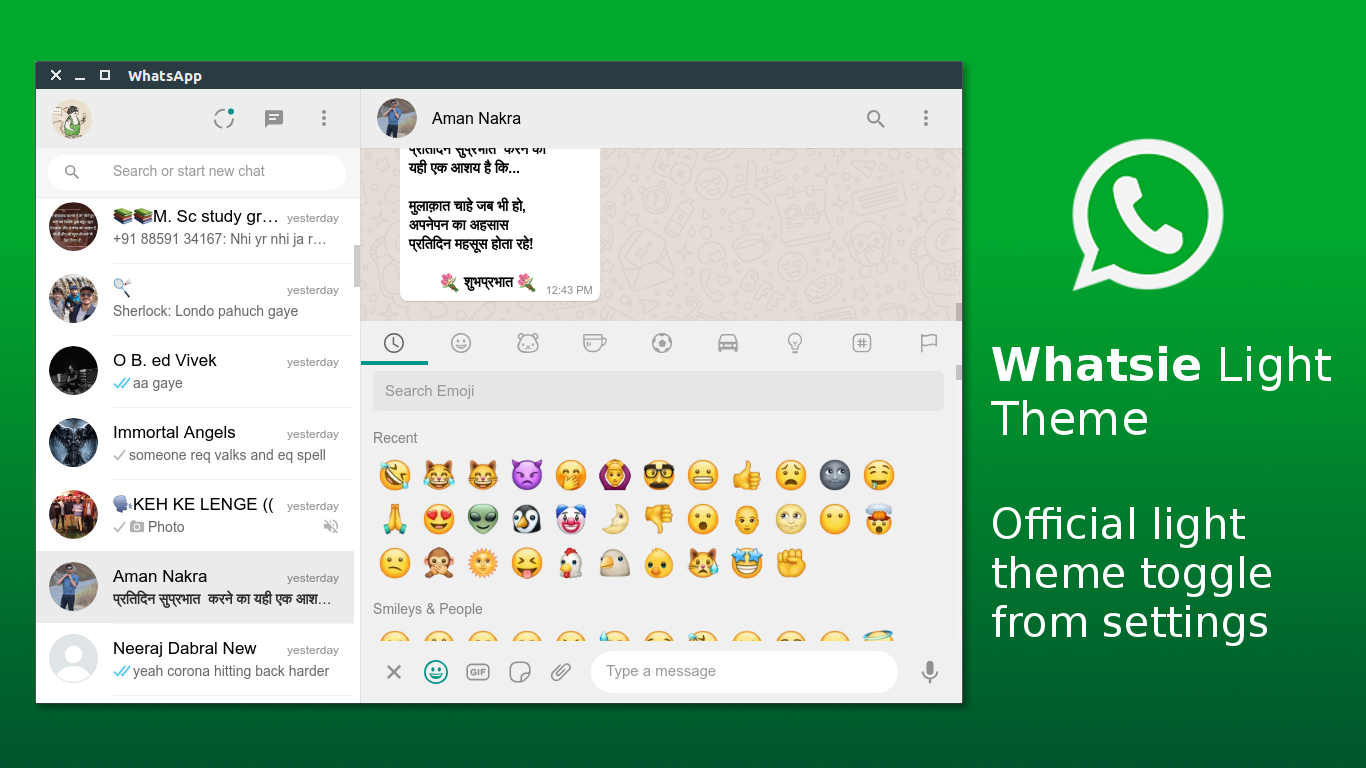
- WhatSie Light Theme
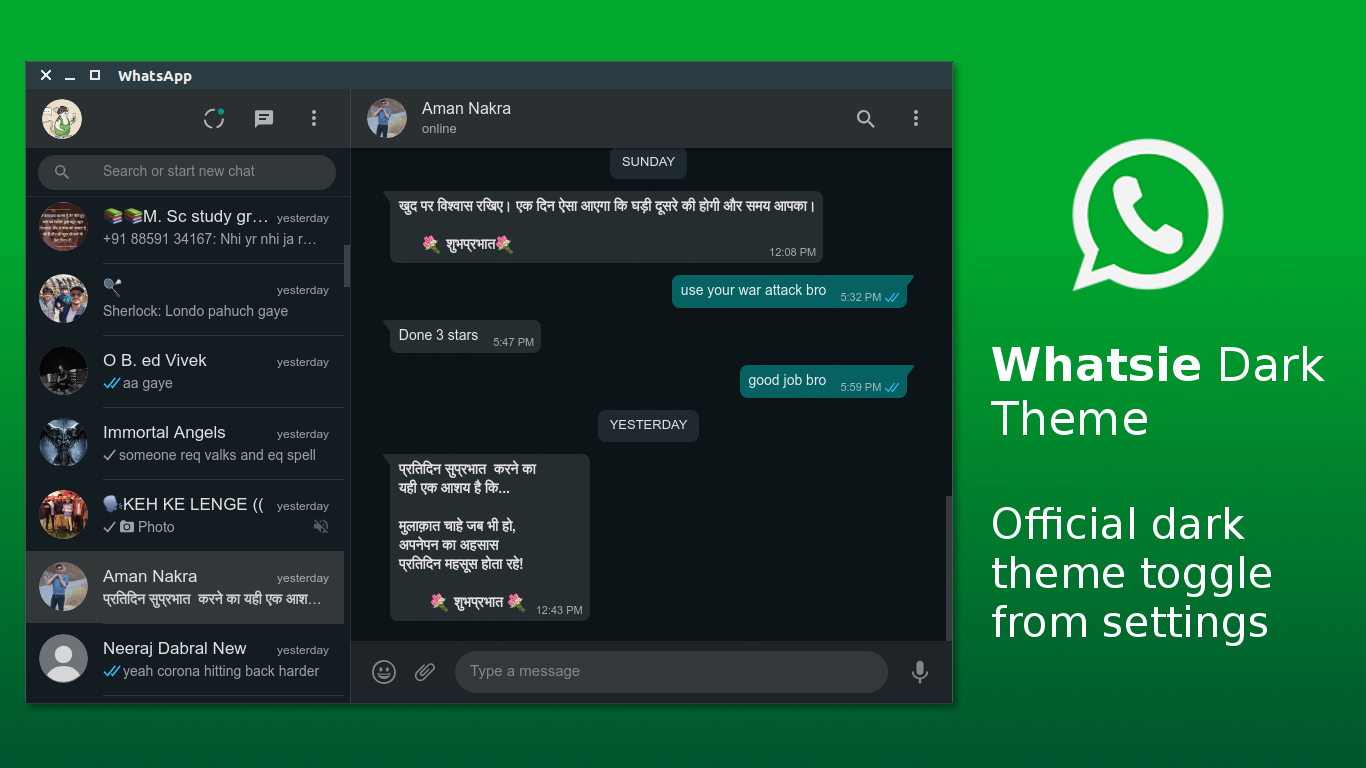
- WhatSie Dark Theme
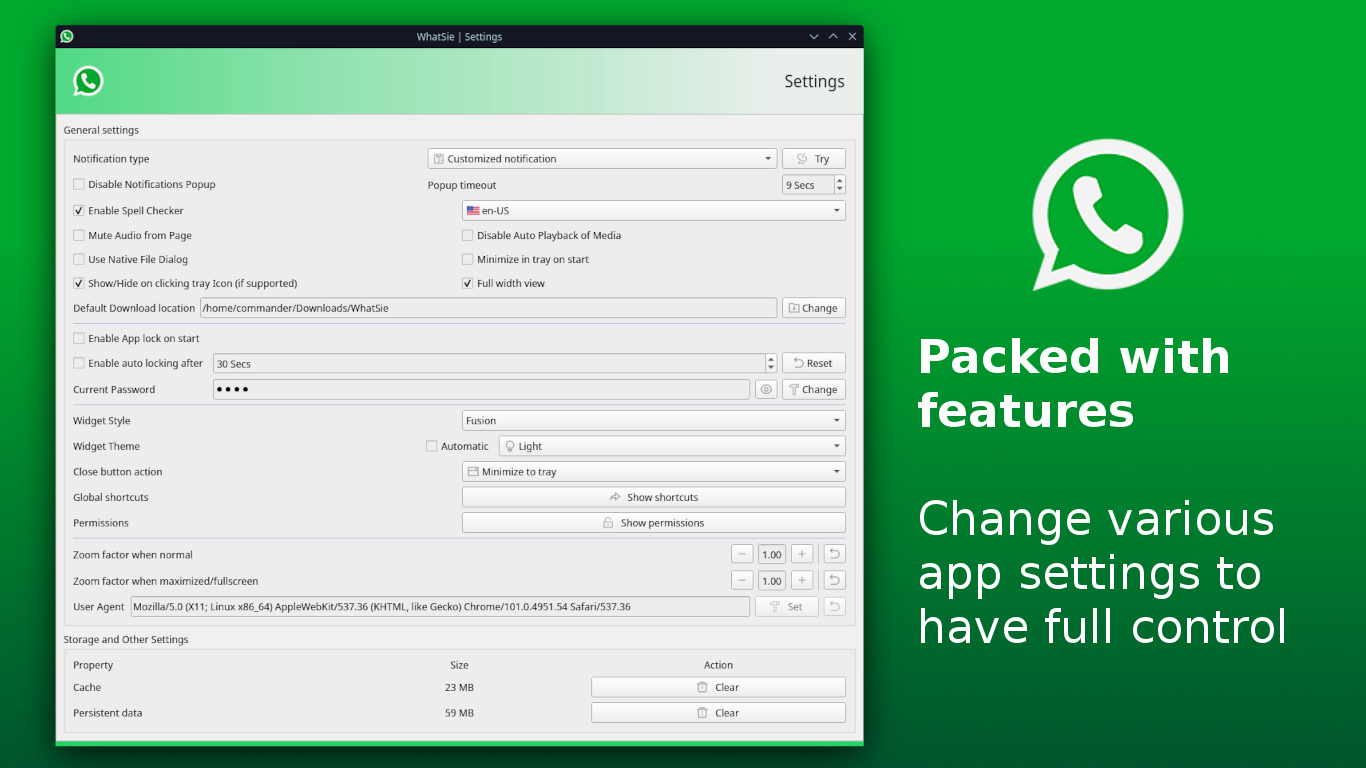
- WhatSie Setting module
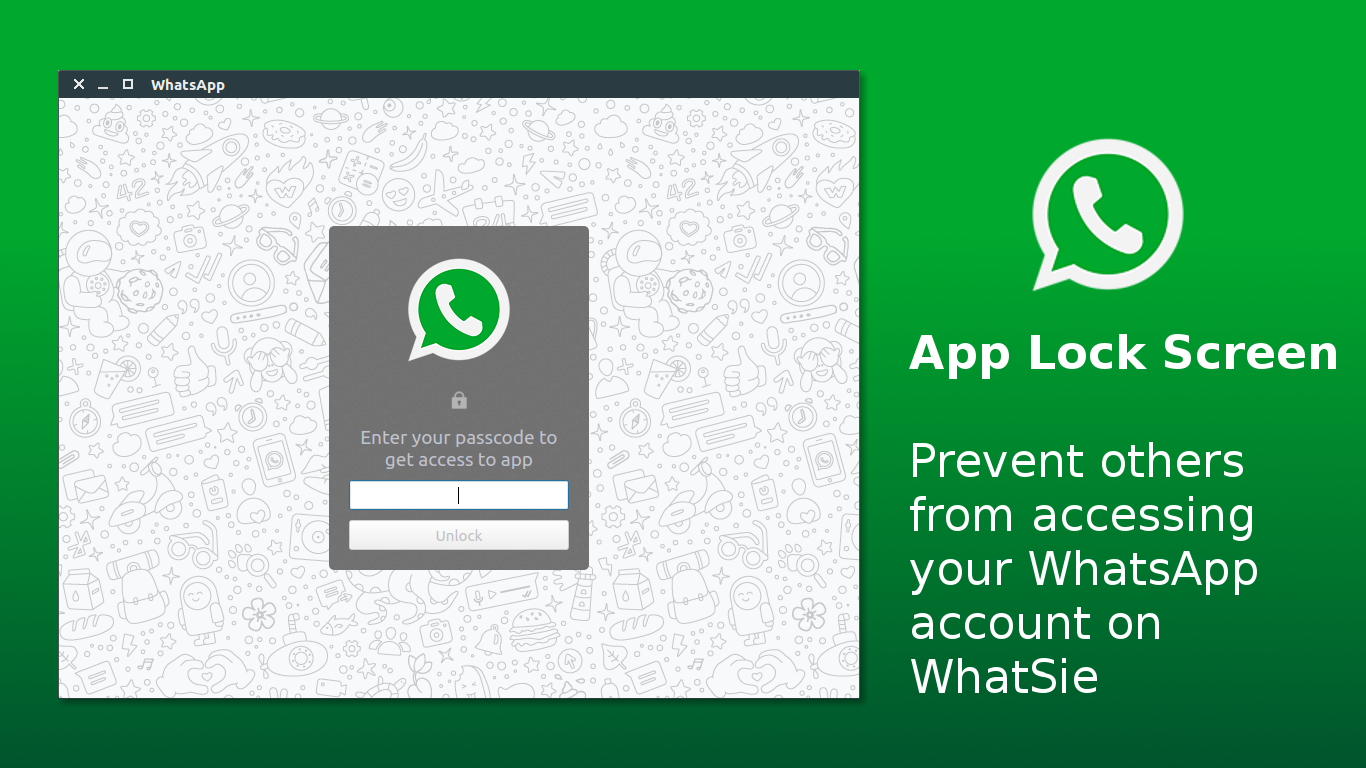
- WhatSie App Lock screen
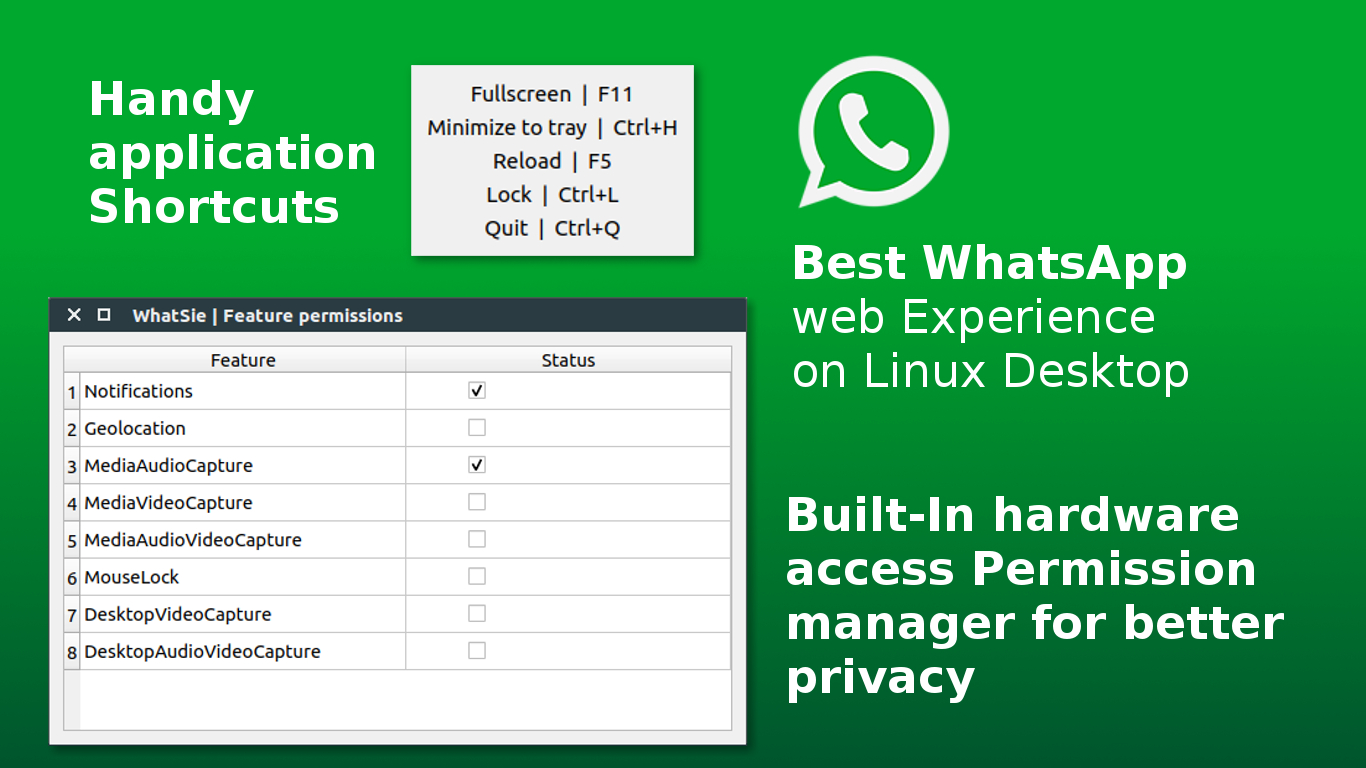
- WhatSie Shortcuts & Permissions
[Images]
In-Depth Look: How WhatSie Elevates WhatsApp Web on the Desktop
User experience and design philosophy WhatSie centers on delivering a cohesive desktop experience that complements the web-based WhatsApp interface. Theming options let you tailor the visual appearance to your environment, while the full view mode ensures you never feel boxed in by a small window. The interface supports quick actions via keyboard shortcuts and app-level menus, reducing the friction of daily messaging tasks. The combination of native and customizable notifications brings a reliable alert system that fits into your notification strategy, whether you prefer system-level prompts or bespoke in-app cues.
Security and privacy-first features
One of WhatSie’s core tenets is giving users control over their private data and how they access system resources. The app lock feature helps secure conversations when you’re away from your desk, and a password-management workflow makes it straightforward to update credentials. The permission manager ensures you can enable or disable access to camera, microphone, and other hardware as needed—vital for group video calls or quick voice messages. Auto-lock timing complements these protections for sessions that should not stay open indefinitely.
Customization and control
WhatSie’s settings are purpose-built for users who want a precise grip on their app behavior. Whether you prefer to mute audio, disable media auto-play, or choose where downloaded media lands on your drive, the app provides a comprehensive set of toggles and controls. The ability to switch between native and custom notification styles lets you choose the alert experience that aligns with your workflow, while the do-not-disturb mode helps you reclaim focus during work hours or study sessions.
Practical workflow enhancements
- Auto theme switching based on time of day ensures readability and reduces eye strain without manual intervention.
- Page zoom and responsive views let you optimize layout for different screen sizes.
- Global shortcuts and per-session actions streamline routine interactions, such as starting a new chat or reloading content after network hiccups.
- Built-in download manager consolidates media handling, an often-overlooked convenience for users who save voice notes and image attachments.
Developer and advanced usage notes
- The CLI makes it possible to script startup sequences, pause and resume activity, or rotate through themes programmatically.
- The app’s storage management tools help maintain a lean footprint by cleaning residual caches and persistent data when needed, reducing clutter over time.
- The app user agent configurability can be used for compatibility testing, or to enforce a consistent identity across multiple environments.
Visual and functional highlights
- The Light and Dark themes are not mere color changes; they’re complemented by subtle typography, iconography, and spacing choices designed for readability and ease of use.
- The Settings module (as seen in the screenshots) presents a centralized hub for adjusting almost every aspect of the WebApp experience, from the window chrome to notification timing.
- App Lock screens and permission panels demonstrate Where WhatSie places emphasis on security without sacrificing convenience.
How WhatSie Fits Into Your Desktop Ecosystem
Cross-platform consistency WhatSie is designed to behave consistently across Linux and Windows desktops. This means features you rely on—like automatic theme switching, notification controls, and permission management—work the same way whether you’re on Ubuntu, Fedora, Arch, or Windows 10/11.
Resource usage and performance
Qt WebEngine provides a robust foundation that balances performance with feature richness. The built-in download manager and the ability to manage storage help keep perceptions of lag or bloat to a minimum, especially on systems with limited resources.
Extensibility and community
Because WhatSie emphasizes open configuration and scriptability, it is well-suited for power users who want to tailor their WhatsApp experience to specialized needs. Its source-available approach invites experimentation, contributing improvements, and sharing ideas about further enhancements.
Practical Getting-Started Guide
- On Linux:
- Install dependencies as described in the Linux build section
- Build from source to customize features or enable debugging
- Alternatively, install via a snap or AUR package where available, then open WhatSie from your application launcher
- On Windows:
- Install Visual Studio with the Desktop development with C++ workload
- Build from source or obtain a prebuilt artifact via CI workflows
- Run the executable and sign in to WhatsApp as you would in a browser
Screenshots and Visual Reference
The included images give a tangible sense of WhatSie’s user interface and settings. They illustrate the look of the light and dark themes, the Settings module, App Lock screen, and the Shortcuts & Permissions screen. These visuals serve as a quick orientation to the kinds of controls you’ll interact with in day-to-day use.
- Light Theme: A bright, clean interface with legible typography and clear action controls
- Dark Theme: A high-contrast, space-efficient presentation suitable for low-light environments
- Settings Module: A consolidated panel where you tune everything from layout to notifications
- App Lock Screen: A security-oriented interface that manages password access
- Shortcuts & Permissions: A window into workflow accelerators and hardware permission toggles
Conclusion
WhatSie represents a thoughtful evolution of WhatsApp Web by bringing desktop-centric features into a single, cohesive client. It blends theme adaptability, granular control over notifications and permissions, and robust security mechanisms with practical workflow enhancements like a built-in download manager and extensive keyboard shortcuts. Whether you’re a software developer who wants to inspect and extend the build, a power user who craves precise control over notifications and privacy, or a casual user who appreciates a polished desktop experience, WhatSie provides a compelling alternative to a standard web experience.
If you’re ready to explore a feature-rich WhatsApp experience on your Linux or Windows desktop, WhatSie is worth trying. The project documentation covers build-from-source instructions for Linux and Windows, as well as installed workflows for snap-based or AUR-based distributions. The included screenshots illustrate the UI and settings that make WhatSie approachable right away, while the CLI and configuration options ensure you can tailor the app to fit your personal workflow.
Enjoying this project?
Discover more amazing open-source projects on TechLogHub. We curate the best developer tools and projects.
Repository:https://github.com/keshavbhatt/whatsie
GitHub - keshavbhatt/whatsie: WhatSie: Feature-rich WhatsApp Web client based on Qt WebEngine for Linux and Windows Desktop
WhatSie is a polished, feature-packed WhatsApp web client built on Qt WebEngine designed to run on Linux and Windows desktops. It reimagines WhatsApp Web by bri...
github - keshavbhatt/whatsie