


Recordly: Open-Source Screen Recorder & Editor
Recordly: A Comprehensive Open-Source Screen Recorder and Editor for Professional Video Production
Introduction to Recordly
Recordly is an open-source, cross-platform screen recording and editing tool designed to transform raw screen captures into polished, professional-grade videos. Whether you are creating walkthroughs, product demos, tutorials, or marketing content, Recordly automates key aspects of video production—such as smooth cursor animations, intelligent zooming, and seamless audio integration—to deliver a visually appealing output with minimal manual effort.
Developed by @webadderall, Recordly builds upon the foundation of the OpenScreen project while introducing significant enhancements. The tool supports macOS, Windows, and Linux, making it accessible to developers, educators, and content creators across different operating systems. Its open-source nature encourages community contributions, fostering continuous improvement.
Core Features: Transforming Screen Recordings into Professional Videos
1. Recording Capabilities
Recordly provides multiple ways to capture screen activity, ensuring flexibility for various use cases:
- Full-Screen or Window Recording: Users can record either the entire display or a specific application window.
- Audio Integration: The tool supports recording both microphone input and system audio, allowing seamless synchronization of voiceovers with visual content.
- Platform-Specific Capture:
- macOS: Utilizes ScreenCaptureKit, a native macOS API that ensures high-quality screen capture without cursor interference.
- Windows: Leverages the Windows Graphics Capture (WGC) API for accurate screen recording, provided the system meets the minimum requirements (Windows 10 Build 19041+). Older versions fall back to Electron-based capture, which may not hide the cursor effectively.
- Linux: Uses Chromium’s capture APIs via Electron. While cursor hiding is not supported natively, users can manually adjust cursor visibility in the editor.
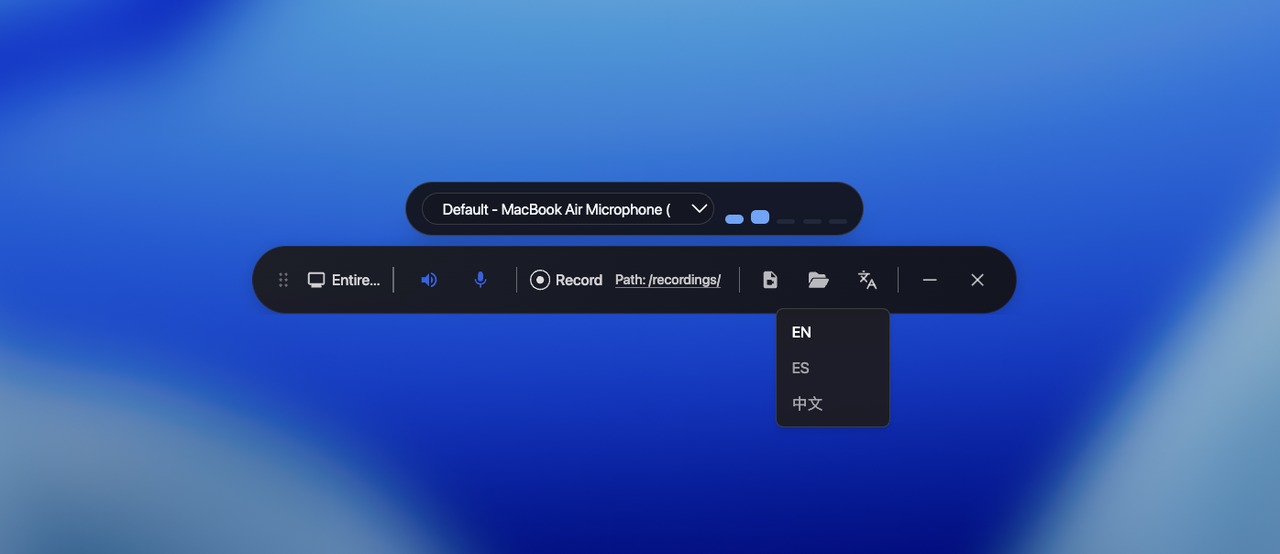 Image: Recordly’s user-friendly recording interface, allowing customization of audio sources and screen regions.
2. Smart Motion Enhancements
One of Recordly’s standout features is its Smart Motion pipeline, which automates key visual improvements to make recordings look more polished:
- Apple-Style Zoom Animations: The tool intelligently detects cursor movements and applies smooth zooming effects, mimicking the behavior found in professional video editing software like Screen Studio.
- Automatic Zoom Suggestions: Based on cursor activity, Recordly suggests optimal zoom regions, reducing manual adjustments required by users.
- Manual Zoom Regions: Users can manually define areas to zoom into, providing fine-grained control over visual emphasis.
- Smooth Pan Transitions: The editor facilitates seamless transitions between different zoom levels, enhancing the fluidity of the video.
 Image: A preview of Recordly’s automated zooming and cursor smoothing in action.
3. Cursor Controls
Cursor behavior is a critical aspect of screen recordings, where subtle animations can significantly improve user experience:
- Adjustable Cursor Size: Users can resize the cursor to suit their preferences or the context of the recording.
- Cursor Smoothing: The tool applies motion blur and smoothing effects to cursor movements, reducing jitter and creating a more professional look.
- Click Bounce Animation: A subtle bounce effect is applied when clicking elements, enhancing interactivity in recordings.
- macOS-Style Cursor Assets: On macOS, Recordly uses native cursor assets, ensuring consistency with the operating system’s visual theme.
 Image: Demonstration of Recordly’s infinite cursor loop feature, allowing seamless repetition for tutorials or product demos.
4. Infinite Loops
For content creators who need to repeat actions multiple times—such as in tutorials or product walkthroughs—Recordly offers an infinite loop functionality:
- Users can toggle the cursor to return to its original position at the end of a recording, ensuring smooth transitions without manual editing.
- This feature is particularly useful for creating looping animations or repetitive demonstrations.
Editor Tools: Refining and Customizing Recordings
Once recordings are captured, Recordly provides an intuitive editor with various tools to refine and enhance the content:
5. Timeline Editing
The editor features a timeline-based interface where users can:
- Trim unnecessary sections from the recording.
- Adjust playback speed for faster or slower pacing.
- Apply speed changes to specific segments, allowing dynamic editing without losing context.
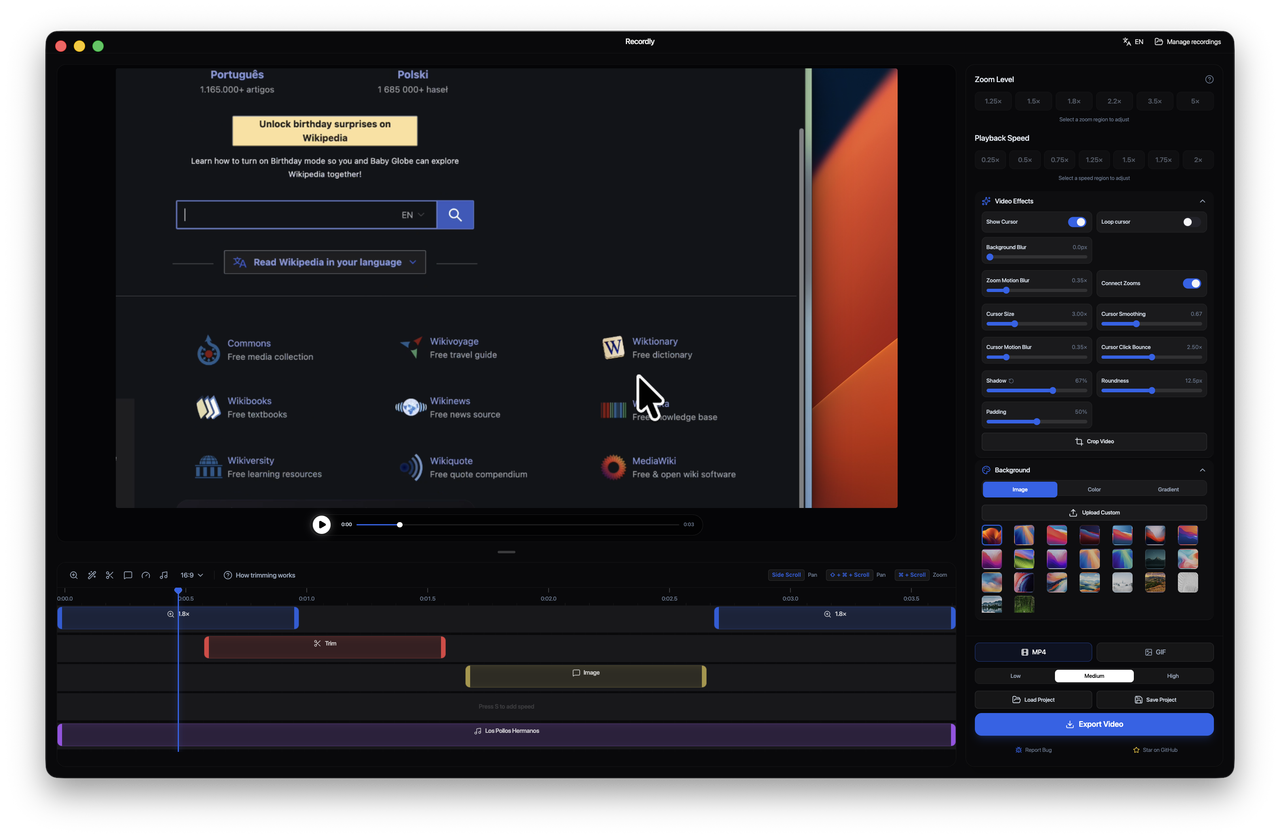 Image: Recordly’s timeline editor, showcasing trimming and speed adjustments.
6. Annotations
Users can add annotations to highlight key points in their recordings:
- Text overlays or callouts can be added to emphasize important actions.
- These annotations can be styled with custom colors, fonts, and effects for better visibility.
7. Zoom Spans
For emphasizing specific areas of interest, Recordly allows users to define zoom spans:
- Users can manually set regions to zoom into, ensuring that critical details are not missed during playback.
8. Frame Styling Options
Recordly offers extensive styling options to customize the appearance of exported videos:
- Wallpapers: Apply custom background images or gradients.
- Gradients and Solid Fills: Choose from predefined gradient palettes or solid colors for a modern look.
- Padding, Rounded Corners, and Blur Effects: Enhance visual appeal with subtle adjustments to borders and transparency.
- Drop Shadows: Add depth to elements by applying shadows.
 Image: Hypothetical representation of Recordly’s frame styling features, including gradients, rounded corners, and shadows.
Export Options: Delivering High-Quality Videos
Recordly supports multiple export formats to cater to different use cases:
9. Video Export
Users can export recordings as:
- MP4: A widely compatible format for full-quality video distribution.
- GIF: Lightweight animations suitable for sharing on social media or websites.
10. Quality and Resolution Controls
Export settings allow users to adjust:
- Aspect Ratio: Ensure compatibility with various platforms (e.g., 16:9, 4:3).
- Output Resolution: Choose from standard resolutions like 720p, 1080p, or higher.
- Quality Settings: Balance between file size and video quality based on user preferences.
System Requirements and Platform Support
11. Minimum System Specifications
To ensure optimal performance, Recordly requires the following:
| Platform | Minimum Version | **Notes | |--------------|---------------------------|------------------------------------------------------------------------| | macOS | macOS 12.3 (Monterey) | Required for ScreenCaptureKit functionality; older versions may not support cursor hiding. | | Windows | Windows 10 Build 19041+ | Required for WGC capture; older builds fall back to Electron-based recording with visible cursors. | | Linux | Any modern distro | Recording works via Chromium APIs, but cursor hiding is not supported. System audio requires PipeWire (Ubuntu 22.04+, Fedora 34+). |
12. Cross-Platform Considerations
While Recordly aims for cross-platform compatibility, some limitations exist:
- Cursor Visibility: On Windows and Linux, cursor hiding is either partially or fully unsupported due to platform-specific API constraints.
- Audio Capture: System audio functionality varies by OS, with macOS requiring ScreenCaptureKit helpers and Linux demanding PipeWire support.
Installation Methods
13. Prebuilt Releases
Users can download precompiled binaries from the Recordly GitHub Releases page for easy installation.
14. Homebrew (macOS)
For macOS users, Recordly can be installed via Homebrew Cask:
brew tap webadderall/tap
brew install --cask recordly
15. Building from Source
Developers interested in contributing or running the latest version can build Recordly from source:
git clone https://github.com/webadderall/Recordly.git
cd Recordly
npm install
npm run dev
Note: macOS users may need to remove the quarantine flag after building locally:
xattr -rd com.apple.quarantine /Applications/Recordly.app
Usage Guide: Recording and Editing Workflow
16. Step-by-Step Recording Process
- Launch Recordly: Open the application from your applications folder or desktop shortcut.
- Select Screen Region: Choose whether to record the entire screen or a specific window.
- Configure Audio: Select microphone input or system audio as needed.
- Start Recording: Initiate recording by clicking the start button.
- Stop and Edit: Once finished, stop recording and open the editor for further refinements.
17. Editing Workflow
- Timeline Adjustments: Trim unnecessary sections or adjust playback speed.
- Zoom Regions: Apply manual or automatic zooming to emphasize key actions.
- Cursor Tweaks: Fine-tune cursor behavior (size, smoothing, bounce).
- Annotations and Styling: Add text overlays, gradients, or shadows for enhanced clarity.
- Export: Save the project as a
.recordlyfile for future editing or export as MP4/GIF.
Limitations and Workarounds
18. Cursor Capture Limitations
While Recordly aims to hide cursors effectively, some platforms have inherent limitations:
- macOS: Cursors are excluded at the ScreenCaptureKit level, ensuring clean recordings.
- Windows (Pre-Build 19041): Falls back to Electron capture, resulting in visible cursor movements.
- Linux: Cursor hiding is not supported via native APIs; users may need to manually adjust visibility in the editor.
19. Audio Capture Dependencies
System audio functionality varies by OS:
- Windows: Uses WASAPI (requires Windows 10 Build 19041+).
- Linux: Requires PipeWire for system audio capture (Ubuntu 22.04+, Fedora 34+). Older PulseAudio setups may not support this.
- macOS: Relies on ScreenCaptureKit helpers, which are available from macOS 12.3 onward.
How Recordly Works: Technical Architecture
Recordly operates as a desktop video editor with a renderer-driven motion pipeline, integrating platform-specific capture layers:
20. Capture Layer
- Electron Orchestration: Acts as the central framework for recording.
- Platform-Specific APIs:
- macOS: Uses ScreenCaptureKit and cursor telemetry helpers.
- Windows: Leverages WGC for screen capture; older builds use Electron’s browser-based fallback.
- Linux: Chromium capture APIs via Electron.
21. Motion Pipeline
- Zoom Regions: Dynamically adjusts focus based on cursor activity or manual input.
- Cursor Tracking: Applies smoothing and motion blur to enhance realism.
- Speed Adjustments: Allows for dynamic playback control within the editor.
22. Rendering Layer
- PixiJS Integration: Handles scene composition, ensuring smooth animations and visual effects.
- Frame Export: Renders frames through the same pipeline as editing, maintaining consistency in output quality.
23. Project Storage (.recordly Files)
Recordly projects are saved in .recordly files, which store:
- The source video path.
- Editor state (zooming, annotations, styling preferences).
Contribution and Community Support
24. Open-Source Contributions
Recordly is an open-source project, encouraging contributions from developers worldwide. Key areas for improvement include:
- Smoother Cursor Pipeline on Linux: Enhancing cursor hiding capabilities.
- Webcam Overlay Bubble: Adding support for webcam feeds in recordings.
- Localization Support (Chinese): Expanding language options.
- UI/UX Improvements: Refining the editor’s interface and workflow.
- Export Speed Optimizations: Reducing rendering times for large projects.
25. Community Engagement
Users can engage with Recordly through:
- GitHub Issues: Reporting bugs or requesting features.
- Pull Requests: Submitting code improvements.
- Ko-fi Donations: Supporting development via ko-fi.com/webadderall.
For inquiries, users can contact the developer at:
- Email: [email protected]
- Twitter/X: @webadderall
License and Credits
26. MIT License
Recordly is distributed under the MIT License, allowing users to freely use, modify, and distribute the software for personal or commercial purposes.
27. Acknowledgements
Recordly was originally built upon the OpenScreen project by Siddharth Vaddem. The tool has been significantly enhanced by contributions from the community, particularly support from tadees, who helped cover Apple Developer fees for macOS notarization and signing.
Conclusion: Why Choose Recordly?
Recordly stands out as a versatile open-source screen recorder and editor designed to simplify professional video production. By automating key tasks such as cursor smoothing, intelligent zooming, and audio integration, it eliminates the need for manual editing in many cases. Its cross-platform support ensures accessibility across macOS, Windows, and Linux, while its customizable styling options allow users to tailor videos to their specific needs.
For developers, educators, and content creators seeking a powerful yet user-friendly tool, Recordly offers an efficient way to transform raw screen recordings into polished, engaging videos. With ongoing contributions from the community, Recordly continues to evolve, making it a valuable asset for anyone involved in digital content creation.
Final Note: For the latest updates, always refer to the Recordly GitHub repository and documentation for platform-specific details.
Enjoying this project?
Discover more amazing open-source projects on TechLogHub. We curate the best developer tools and projects.
Repository:https://github.com/webadderall/Recordly
GitHub - webadderall/Recordly: Recordly: Open-Source Screen Recorder & Editor
Recordly is an open-source, cross‑platform screen recording and editing tool designed to transform raw screen captures into polished, professional‑grade videos....
github - webadderall/recordly